 AIVideoFree
AI Image Editor
Describe the change instead of making it: remove what shouldn't be there, swap a background, change an outfit, restyle the whole frame. Ten models behind one box, three free edits a day.

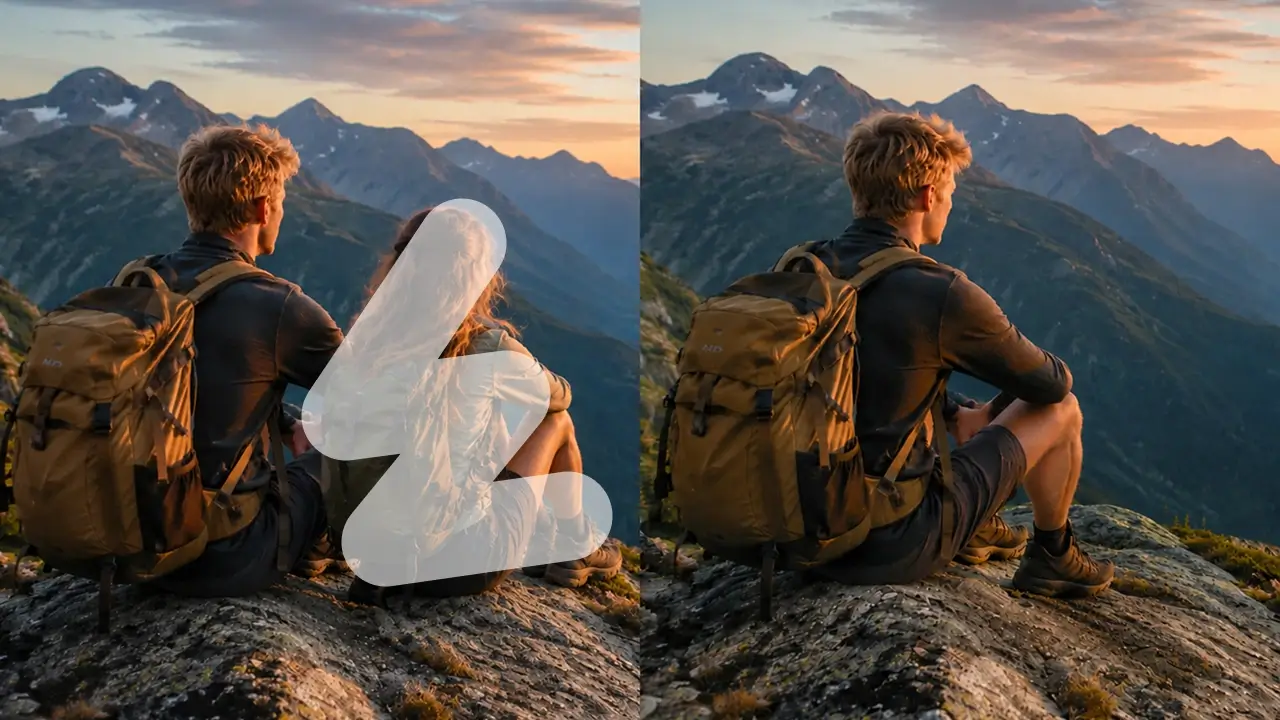
Input
JPG · PNG · WebP · HEIC, 20 MB
Jobs
Remove · replace · restyle · retouch
Models available
10, selectable per edit
Preserved
Everything you don't name
Max output
Up to 4K on Nano Banana 2
Free tier
3 edits daily, no account
Your uploads
Deleted within 24 hours
Our one-line verdict: the most underrated half of AI imaging. Editing what exists beats regenerating from scratch on cost, control, and how often you get what you actually pictured.
Most AI image work doesn't start with a blank prompt box — it starts with a photo that's almost right. The bin in the corner, the background that doesn't suit the listing, the jacket that's wrong for the season, the face that belongs to someone who left the company. Editing solves those without throwing away the composition, lighting and proportions you already have, which is why the hit rate is so much higher than generating a replacement and hoping it matches. The trick that makes it work is counterintuitive and takes one sentence to learn: name what must stay, not just what changes. Everything on this page assumes that.
How to edit a photo with AI in 3 steps
Upload the image
Highest-resolution copy you have. Editing preserves what's already there, so a better source means a better result — more so than in generation.
Say what changes — and what must not
The protection clause is the whole trick: 'remove the bin on the left, keep the subject, her pose, the shopfront and the light exactly as they are.'
Draft free, compare, export
Run it on the free tier, then check the untouched areas really are untouched before you spend anything.
What people edit
One shoot, every context
A single product photo placed in a dozen backgrounds — studio, lifestyle, seasonal — without rebooking a shoot or rebuilding a set.
The fix that used to take an hour
A bin, a stray cable, a passer-by at the edge of frame. What was a careful clone-stamp session is now a sentence and fifteen seconds.
Localising existing creative
Swapping text, props or seasonal details per market while the layout, the model and the brand elements stay exactly where they were.
Where it works well — and where it struggles
The right column is half technical limits and half rules we've chosen. Knowing the failure modes before you upload saves more time than any guide.
Where it works well
• Control that prompts can't buy.
You're editing a real image, so composition, proportion and lighting are already correct — the model only changes what you named.
• Cheaper than regenerating.
One targeted edit beats twenty full generations hoping for the same framing. It's the difference between fixing and gambling.
• Multi-turn refinement.
On the newest models edits stack across turns without the subject drifting — five successive changes still leave your product recognisably yours.
• Layered output on one model.
Seedream 5.0 Pro returns editable PNG layers, so the last mile happens in your design tool rather than in another prompt.
Where it struggles
• Precise logos and fine print.
Exact logo placement and small text can drift when regenerated. Do the visual here and place critical text in your design tool.
• Heavy edits become new images.
Ask for enough change and preservation breaks down — at some point the honest move is generating fresh with your image as a reference.
• Low-resolution sources.
Editing a small, soft photo produces a bigger soft photo. Start from the best original you have.
• Photos of people who didn't agree.
Your own images or ones you hold the rights to. No public figures, no minors, nothing built to deceive or humiliate.
Which edit do you need?
Which model should run the edit?
Same upload, different engine depending on the job. Each is a chip in the box above — draft free, then take the link when the brief gets specific.
GPT Image 2.5
Edits accumulate across turns without the subject drifting, at roughly half the previous generation's latency. The model for refining rather than re-rolling.
Seedream 5.0 Pro
Point, lasso or sketch the region — and get 10+ editable transparent layers back, so the next revision happens in Figma instead of the prompt box.
Nano Banana 2
Google's default: Flash-speed edits up to 4K, with consistency across five characters and fourteen objects when a whole set needs the same treatment.
FLUX.3
Multiple reference images steering one edit, hex-code colour fidelity, and in-place editing at 4MP.
Nano Banana Pro
Reasoning-backed edits for infographics and text-heavy layouts, where changing one element mustn't break the numbers around it.
Grok Imagine 2
The only model here that returns genuine editable SVG — for when the edit's destination is a logo or an icon set.
Questions, answered straight
Upload the image, describe the change and — this is the part that matters — name what must stay the same. 'Replace the background with a sunlit workshop, keep the product, its shadow and the rim light exactly as they are.' Then draft it free, check the untouched areas, and export.
Other tools on this site
The same idea for footage: restyle, remove, extend.
No photo to start from? Generate one.
Turn the edited photo into a moving clip.